
Most Google Ads accounts don’t fail loudly. They keep spending every day, the dashboard shows clicks and conversions, and the cost per lead creeps up month after month. The leaks hide in settings and reports that nobody opens after launch.
This guide is for businesses spending €2,000 a month or more on Google Ads that want to check their own account. At that level, even a small leak adds up: if one euro in five goes to the wrong clicks, that’s €400 or more every month.
Below are seven mistakes we see often, why each one costs money, and how to spot it in a few minutes. You don’t need to change anything yet. Start by finding out where you stand.
1. Counting the wrong things as conversions
Google’s automated bidding optimises for whatever you tell it is a conversion. If that includes page views, button clicks or time on site, it will find you more of those cheap, easy actions, not more customers.
How to check: go to Goals → Conversions → Summary and look at which actions are set as primary. Those are the ones bidding uses. Then compare last month’s conversions in Google Ads with the real leads or sales in your CRM or shop.
If the two numbers are far apart, bidding is learning from the wrong signal. Common causes are the same action counted twice (once from a tag and once imported from GA4), spam form submissions, and soft actions marked as primary. Fixing conversion tracking comes before any other optimisation.
2. Paying for searches you’d never want
The keywords you choose and the searches you actually pay for are not the same thing. With broad match in particular, your ads can show for searches that only loosely relate to what you sell.
How to check: open Insights and reports → Search terms, pick the last 30 days and sort by cost. Read the top 50 searches. Look for job seekers (“jobs”, “salary”), people wanting something free or DIY, other brands, and services you don’t offer.
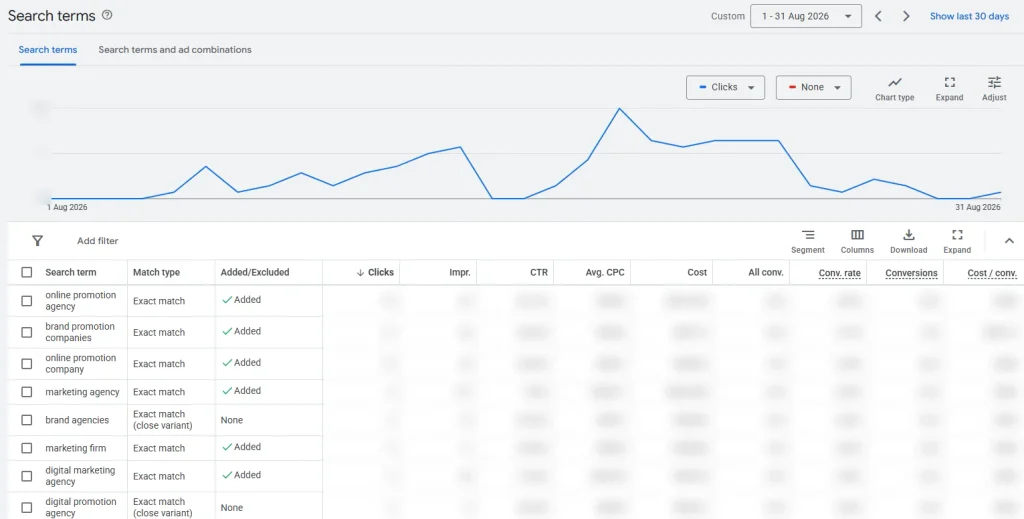
Every irrelevant search you find is money already spent. Adding them as negative keywords stops it from happening again. In a new or recently changed account, this check is worth doing every week.
3. Showing ads outside your market
Google’s default location setting targets people in your chosen area and people who have only shown interest in it. For a business that serves Belgrade, that can include someone in another country reading about the city.
How to check: in each campaign, open Settings → Locations → Location options. If you only serve customers who are physically in your area, choose the option for people in or regularly in your targeted locations. Then look at the locations report to see where your clicks and conversions actually came from.
Check the language setting while you’re there. It should match the languages your customers actually search in, which in many markets means more than one.
4. Letting default settings decide where ads run
Some of the costliest settings are switched on by default when you create a campaign, and many accounts never revisit them.
How to check:
- Networks. In a Search campaign, open Settings → Networks. If the Display Network is included, your search ads can also appear on websites and apps, where clicks are usually cheaper but far less likely to turn into leads. Segment your campaign report by network and compare the cost per lead.
- Search partners. Do the same comparison for search partner sites. They can work, but judge them on leads, not clicks.
- Auto-applied recommendations. Open Recommendations and check auto-apply. Some recommendations add keywords, change bidding or raise budgets without you approving each change. Know what is switched on and why.
5. Sending clicks to a page that doesn’t convert
Google Ads can only bring people to the door. If the page they land on is slow, vague or asks for too much, the money is spent before the visitor has a reason to contact you.
How to check: search for your own top keywords with the Ad Preview and Diagnosis tool (so you don’t add fake impressions), and open the page your ad points to on a phone. Ask four questions:
- Does the page say the same thing the ad promised?
- Does it load quickly on mobile data?
- Can a visitor see what to do next without scrolling far?
- Is the form short enough to finish in under a minute?
Sending every ad to the homepage is one of the most common versions of this mistake. A dedicated landing page for each main offer usually makes the same budget go further.
6. Spreading the budget too thin
Automated bidding learns from conversions. When a budget is split across many campaigns, each one gets too few conversions to learn from, and none of them performs well.
How to check: list your active campaigns with their monthly spend and conversions. Look for campaigns marked “Limited by budget” and campaigns with only a handful of conversions a month.
If most campaigns look like that, the account is probably trying to do too many things at once. Fewer campaigns, each with a clear goal and enough budget to reach it, are easier to manage and easier for bidding to learn from.
7. Reporting brand searches as new demand
People who search for your company name already know you. Ads on those searches are cheap and convert well, so when they are mixed with everything else, they make the whole account look better than it is.
This matters most with campaign types that can match brand searches automatically, such as Performance Max or broad match. They may take credit for customers who would have found you anyway.
How to check: in the search terms report, filter for your brand name and see what share of spend and conversions it accounts for. Report brand and non-brand results separately. The non-brand numbers tell you what Google Ads really brings you in new customers.
Frequently asked questions
How often should I audit my Google Ads account?
A light check of search terms, budget status and conversion numbers is worth doing every week or two. A full review like the one in this guide makes sense every quarter, and after any big change such as a new website, new tracking or a new campaign type.
Can I audit my account myself?
Yes. Every check in this guide needs only access to the account and about an hour. The harder part is deciding what to change, and in which order, without disrupting campaigns that are still learning.
Is broad match always a mistake?
No. Broad match can find valuable searches you would never think of, but it relies on accurate conversion data and regular search term reviews. Without those, it tends to spend widely on irrelevant traffic.
Why do I get clicks but no leads?
In most accounts, the cause sits in one of three places: the tracking (section 1), the targeting (sections 2 to 4) or the landing page (section 5). Check them in that order.
Where to start
You don’t need to fix everything at once. Start with conversion tracking, because every other decision depends on it. Then review search terms, then settings, then landing pages. Our Google Ads service is built for businesses spending from €2,000 a month. If you’d like a second pair of eyes on your account, contact us.